Open Notebook - Teil 6
23. Juni 2026 - Lesezeit: 21 Minuten
Speaches
Speaches ist eine freie Software für Audio-KI-Modelle.
Damit lässt sich TTS (text to speech) und STT (speech to text) bereitstellen. Das wiederum kann über die OpenAI-kompatible API an andere KI-Lösungen angeschlossen werden, z.B. Open Notebook. Speaches möchte das Gegenstück zu Ollama sein, dass KI-Modelle für Embedding, Chat, Tools, Vision, Thinking im Angebot hat.
Installationsvorbereitung
Speaches kann am einfachsten über Docker bereitgestellt werden. Dazu kann die bestehende Docker-Bauanleitung für Open Notebook um die Komponenten für speaches erweitert werden.
Zuächst ist der Open Notebook Projektordner für Docker zu öffnen und dort die Datei docker-compose.yml mit einem Texteditor zu bearbeiten.
Mit Nvidia GPU Unterstützung
# Docker Compose - 100% Local AI Setup
#
# This is the complete privacy-focused setup with NO external APIs needed:
# - Ollama: Local LLM and embeddings (mistral, llama, nomic-embed, etc.)
# - Speaches: Local TTS (text-to-speech) and STT (speech-to-text)
# - Open Notebook: Your research assistant
# - SurrealDB: Local database
#
# Perfect for:
# - Complete privacy (nothing leaves your machine)
# - Offline work
# - No API costs
# - Air-gapped environments
# - Testing and development
#
# Usage:
#   1. Copy this file to your project folder as docker-compose.yml
#   2. Change OPEN_NOTEBOOK_ENCRYPTION_KEY below
#   3. Run: docker compose up -d
#   4. Pull models (see instructions below)
#   5. Configure providers in UI
#
# Full documentation:
# - Ollama setup: https://github.com/lfnovo/open-notebook/blob/main/examples/README.md
# - TTS setup: https://github.com/lfnovo/open-notebook/blob/main/docs/5-CONFIGURATION/local-tts.md
# - STT setup: https://github.com/lfnovo/open-notebook/blob/main/docs/5-CONFIGURATION/local-stt.md

services:
  surrealdb:
    image: surrealdb/surrealdb:v2
    command: start --log info --user root --pass root rocksdb:/mydata/mydatabase.db
    user: root  # Required for bind mounts on Linux
    ports:
      - "8000:8000"
    volumes:
      - ./surreal_data:/mydata
    environment:
      - SURREAL_EXPERIMENTAL_GRAPHQL=true
    restart: always
    pull_policy: always

  open_notebook:
    image: lfnovo/open_notebook:v1-latest
    ports:
      - "8502:8502"  # Web UI
      - "5055:5055"  # REST API
    environment:
      # REQUIRED: Change this to your own secret string
      # This encrypts your API keys in the database
      - OPEN_NOTEBOOK_ENCRYPTION_KEY=topsecretstring

      # Database connection (default values - no need to change)
      - SURREAL_URL=ws://surrealdb:8000/rpc
      - SURREAL_USER=root
      - SURREAL_PASSWORD=root
      - SURREAL_NAMESPACE=open_notebook
      - SURREAL_DATABASE=open_notebook

      # Ollama (required when running Ollama via Docker, as in this compose file)
      - OLLAMA_BASE_URL=http://ollama:11434

    volumes:
      - ./notebook_data:/app/data
    depends_on:
      - surrealdb
    restart: always
    pull_policy: always

  ollama:
    image: ollama/ollama:latest
    ports:
      - "11434:11434"
    volumes:
      - ./ollama_models:/root/.ollama
    restart: always
    # Optional: set GPU support if available
    deploy:
      resources:
        reservations:
          devices:
            - driver: nvidia
              count: all
              capabilities: [gpu]

  speaches:
    image: ghcr.io/speaches-ai/speaches:latest-cuda
    container_name: speaches
    ports:
      - "8969:8000"
    volumes:
      - hf-hub-cache:/home/ubuntu/.cache/huggingface/hub
    restart: unless-stopped
    # For CPU acceleration, use: ghcr.io/speaches-ai/speaches:latest-cpu
    # For GPU acceleration, use: ghcr.io/speaches-ai/speaches:latest-cuda
    # and add GPU device mapping (see docs/5-CONFIGURATION/local-tts.md)
    deploy:
      resources:
        reservations:
          devices:
            - driver: nvidia
              count: all
              capabilities: [gpu]

volumes:
  hf-hub-cache:

# ==========================================
# AFTER STARTING: Download Models
# ==========================================
#
# Ollama Models (LLM):
#   docker exec open_notebook-ollama-1 ollama pull mistral
#   docker exec open_notebook-ollama-1 ollama pull llama3.1
#   docker exec open_notebook-ollama-1 ollama pull qwen2.5
#
# Ollama Models (Embeddings):
#   docker exec open_notebook-ollama-1 ollama pull nomic-embed-text
#   docker exec open_notebook-ollama-1 ollama pull mxbai-embed-large
#
# Speaches (TTS):
#   docker compose exec speaches uv tool run speaches-cli model download speaches-ai/Kokoro-82M-v1.0-ONNX
#
# Speaches (STT):
#   docker compose exec speaches uv tool run speaches-cli model download Systran/faster-whisper-small
#
# ==========================================
# CONFIGURATION IN OPEN NOTEBOOK
# ==========================================
#
# 1. Configure Ollama:
#    - Go to Settings → API Keys
#    - Add Credential → Select "Ollama"
#    - Base URL: http://ollama:11434
#    - Save → Test Connection → Discover Models → Register Models
#
# 2. Configure Speaches (TTS/STT):
#    - Go to Settings → API Keys
#    - Add Credential → Select "OpenAI-Compatible"
#    - Name: "Local Speaches"
#    - Base URL for TTS: http://host.docker.internal:8969/v1  (macOS/Windows)
#                    or: http://172.17.0.1:8969/v1           (Linux)
#    - Base URL for STT: (same as TTS)
#    - Save → Test Connection
#
# 3. Discover Speech Models:
#    - In the Speaches credential you just created, click Discover Models
#    - Select and register the models you need (e.g. TTS and STT)
#    - If models aren't discovered automatically, add them manually:
#      * TTS: speaches-ai/Kokoro-82M-v1.0-ONNX
#      * STT: Systran/faster-whisper-small
#
# ==========================================
# RECOMMENDED MODELS
# ==========================================
#
# For LLM (choose based on your hardware):
# - Fast: mistral (7B), qwen2.5 (7B)
# - Balanced: llama3.1 (8B)
# - Best quality: qwen2.5 (14B+), llama3.1 (70B) - requires powerful GPU
#
# For Embeddings:
# - nomic-embed-text (recommended, 137M params)
# - mxbai-embed-large (334M params, better quality)
#
# For TTS:
# - speaches-ai/Kokoro-82M-v1.0-ONNX (good quality, fast)
#
# For STT (Whisper):
# - faster-whisper-small (balanced, ~500MB)
# - faster-whisper-base (faster, less accurate)
# - faster-whisper-large-v3 (best quality, slower, ~3GB)
#
# ==========================================
# HARDWARE REQUIREMENTS
# ==========================================
#
# Minimum (CPU only):
# - 8 GB RAM
# - 20 GB disk space
# - 4 CPU cores
#
# Recommended (with GPU):
# - 16+ GB RAM
# - 8+ GB VRAM (NVIDIA GPU)
# - 50 GB disk space
# - 8+ CPU cores
#
# ==========================================
# COST COMPARISON
# ==========================================
#
# Local (this setup):
# - Cost: $0 (after hardware)
# - Privacy: 100% private
# - Speed: Depends on hardware
#
# Cloud (OpenAI + ElevenLabs):
# - LLM: ~$0.01-0.10 per 1K tokens
# - Embeddings: ~$0.0001 per 1K tokens
# - TTS: ~$0.015 per minute
# - STT: ~$0.006 per minute
# - Privacy: Data sent to providers
# - Speed: Usually faster
|
Mit reiner CPU-Nutzung
# Docker Compose - 100% Local AI Setup
#
# This is the complete privacy-focused setup with NO external APIs needed:
# - Ollama: Local LLM and embeddings (mistral, llama, nomic-embed, etc.)
# - Speaches: Local TTS (text-to-speech) and STT (speech-to-text)
# - Open Notebook: Your research assistant
# - SurrealDB: Local database
#
# Perfect for:
# - Complete privacy (nothing leaves your machine)
# - Offline work
# - No API costs
# - Air-gapped environments
# - Testing and development
#
# Usage:
#   1. Copy this file to your project folder as docker-compose.yml
#   2. Change OPEN_NOTEBOOK_ENCRYPTION_KEY below
#   3. Run: docker compose up -d
#   4. Pull models (see instructions below)
#   5. Configure providers in UI
#
# Full documentation:
# - Ollama setup: https://github.com/lfnovo/open-notebook/blob/main/examples/README.md
# - TTS setup: https://github.com/lfnovo/open-notebook/blob/main/docs/5-CONFIGURATION/local-tts.md
# - STT setup: https://github.com/lfnovo/open-notebook/blob/main/docs/5-CONFIGURATION/local-stt.md

services:
  surrealdb:
    image: surrealdb/surrealdb:v2
    command: start --log info --user root --pass root rocksdb:/mydata/mydatabase.db
    user: root  # Required for bind mounts on Linux
    ports:
      - "8000:8000"
    volumes:
      - ./surreal_data:/mydata
    environment:
      - SURREAL_EXPERIMENTAL_GRAPHQL=true
    restart: always
    pull_policy: always

  open_notebook:
    image: lfnovo/open_notebook:v1-latest
    ports:
      - "8502:8502"  # Web UI
      - "5055:5055"  # REST API
    environment:
      # REQUIRED: Change this to your own secret string
      # This encrypts your API keys in the database
      - OPEN_NOTEBOOK_ENCRYPTION_KEY=topsecretstring
      # Database connection (default values - no need to change)
      - SURREAL_URL=ws://surrealdb:8000/rpc
      - SURREAL_USER=root
      - SURREAL_PASSWORD=root
      - SURREAL_NAMESPACE=open_notebook
      - SURREAL_DATABASE=open_notebook

      # Ollama (required when running Ollama via Docker, as in this compose file)
      - OLLAMA_BASE_URL=http://ollama:11434

    volumes:
      - ./notebook_data:/app/data
    depends_on:
      - surrealdb
    restart: always
    pull_policy: always

  ollama:
    image: ollama/ollama:latest
    ports:
      - "11434:11434"
    volumes:
      - ./ollama_models:/root/.ollama
    restart: always
    # Optional: set GPU support if available
    # deploy:
    #  resources:
    #    reservations:
    #      devices:
    #        - driver: nvidia
    #          count: all
    #          capabilities: [gpu]

  speaches:
    image: ghcr.io/speaches-ai/speaches:latest-cpu
    container_name: speaches
    ports:
      - "8969:8000"
    volumes:
      - hf-hub-cache:/home/ubuntu/.cache/huggingface/hub
    restart: unless-stopped
    # For CPU acceleration, use: ghcr.io/speaches-ai/speaches:latest-cpu
    # For GPU acceleration, use: ghcr.io/speaches-ai/speaches:latest-cuda
    # and add GPU device mapping (see docs/5-CONFIGURATION/local-tts.md)
    # deploy:
    #  resources:
    #    reservations:
    #      devices:
    #        - driver: nvidia
    #          count: all
    #          capabilities: [gpu]
volumes:
  hf-hub-cache:


# ==========================================
# AFTER STARTING: Download Models
# ==========================================
#
# Ollama Models (LLM):
#   docker exec open_notebook-ollama-1 ollama pull mistral
#   docker exec open_notebook-ollama-1 ollama pull llama3.1
#   docker exec open_notebook-ollama-1 ollama pull qwen2.5
#
# Ollama Models (Embeddings):
#   docker exec open_notebook-ollama-1 ollama pull nomic-embed-text
#   docker exec open_notebook-ollama-1 ollama pull mxbai-embed-large
#
# Speaches (TTS):
#   docker compose exec speaches uv tool run speaches-cli model download speaches-ai/Kokoro-82M-v1.0-ONNX
#
# Speaches (STT):
#   docker compose exec speaches uv tool run speaches-cli model download Systran/faster-whisper-small
#
# ==========================================
# CONFIGURATION IN OPEN NOTEBOOK
# ==========================================
#
# 1. Configure Ollama:
#    - Go to Settings → API Keys
#    - Add Credential → Select "Ollama"
#    - Base URL: http://ollama:11434
#    - Save → Test Connection → Discover Models → Register Models
#
# 2. Configure Speaches (TTS/STT):
#    - Go to Settings → API Keys
#    - Add Credential → Select "OpenAI-Compatible"
#    - Name: "Local Speaches"
#    - Base URL for TTS: http://host.docker.internal:8969/v1  (macOS/Windows)
#                    or: http://172.17.0.1:8969/v1           (Linux)
#    - Base URL for STT: (same as TTS)
#    - Save → Test Connection
#
# 3. Discover Speech Models:
#    - In the Speaches credential you just created, click Discover Models
#    - Select and register the models you need (e.g. TTS and STT)
#    - If models aren't discovered automatically, add them manually:
#      * TTS: speaches-ai/Kokoro-82M-v1.0-ONNX
#      * STT: Systran/faster-whisper-small
#
# ==========================================
# RECOMMENDED MODELS
# ==========================================
#
# For LLM (choose based on your hardware):
# - Fast: mistral (7B), qwen2.5 (7B)
# - Balanced: llama3.1 (8B)
# - Best quality: qwen2.5 (14B+), llama3.1 (70B) - requires powerful GPU
#
# For Embeddings:
# - nomic-embed-text (recommended, 137M params)
# - mxbai-embed-large (334M params, better quality)
#
# For TTS:
# - speaches-ai/Kokoro-82M-v1.0-ONNX (good quality, fast)
#
# For STT (Whisper):
# - faster-whisper-small (balanced, ~500MB)
# - faster-whisper-base (faster, less accurate)
# - faster-whisper-large-v3 (best quality, slower, ~3GB)
#
# ==========================================
# HARDWARE REQUIREMENTS
# ==========================================
# Minimum (CPU only):
# - 8 GB RAM
# - 20 GB disk space
# - 4 CPU cores
#
# Recommended (with GPU):
# - 16+ GB RAM
# - 8+ GB VRAM (NVIDIA GPU)
# - 50 GB disk space
# - 8+ CPU cores
#
# ==========================================
# COST COMPARISON
# ==========================================
#
# Local (this setup):
# - Cost: $0 (after hardware)
# - Privacy: 100% private
# - Speed: Depends on hardware
#
# Cloud (OpenAI + ElevenLabs):
# - LLM: ~$0.01-0.10 per 1K tokens
# - Embeddings: ~$0.0001 per 1K tokens
# - TTS: ~$0.015 per minute
# - STT: ~$0.006 per minute
# - Privacy: Data sent to providers
# - Speed: Usually faster
|
Installation
Dann ist der Projektordner in einer Shell zu öffnen und die Bauanleitung mit Docker auszuführen:
docker compose up -d
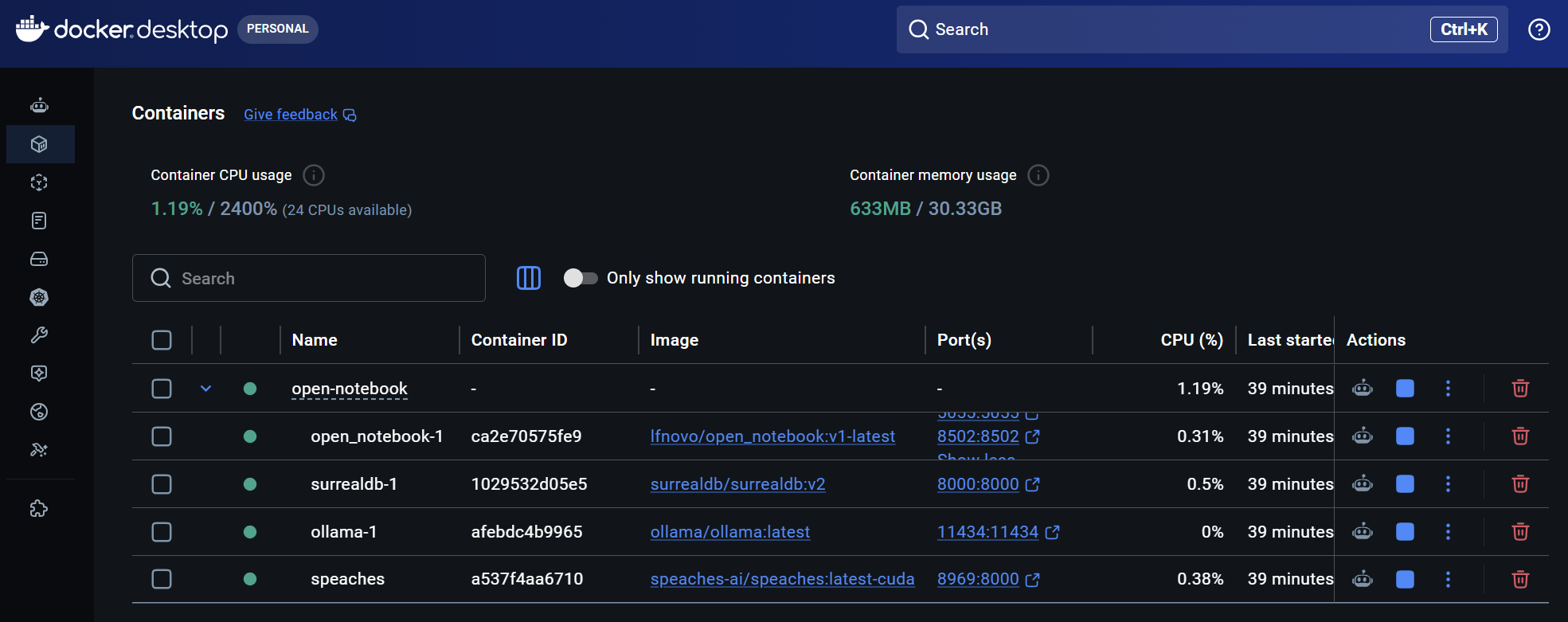
Jetzt laufen Container für Open Notebook, surreal db, Ollama und Speaches.
Welche Modelle für speaches zur Verfügung stehen kann man lokal abfragen mit http://localhost:8969/v1/registry oder über huggingface einsehen.
TTS Modell
Text to speech lokal mit speaches ermöglicht das Erstellen von Podcasts.
docker compose exec speaches uv tool run speaches-cli model download speaches-ai/Kokoro-82M-v1.0-ONNX
Kokoro ist zwar multilingual, enthält aber kein Deutsch. Deshalb noch deutsche Modelle, Piper enthält das:
speaches-ai/piper-de_DE-thorsten-high
speaches-ai/piper-de_DE-thorsten_emotional-medium
speaches-ai/piper-de_DE-thorsten-medium
speaches-ai/piper-de_DE-thorsten-low
speaches-ai/piper-de_DE-mls-medium
speaches-ai/piper-de_DE-karlsson-low
speaches-ai/piper-de_DE-pavoque-low
speaches-ai/piper-de_DE-kerstin-low
speaches-ai/piper-de_DE-ramona-low
speaches-ai/piper-de_DE-eva_k-x_low
STT Modell
Speech to text lokal mit speaches ermöglicht das transkribieren von Video- und Audiodateien als Quellen.
docker compose exec speaches uv tool run speaches-cli model download Systran/faster-whisper-small
Konfiguration in Open Notebook
Modell-Grundkonfiguration
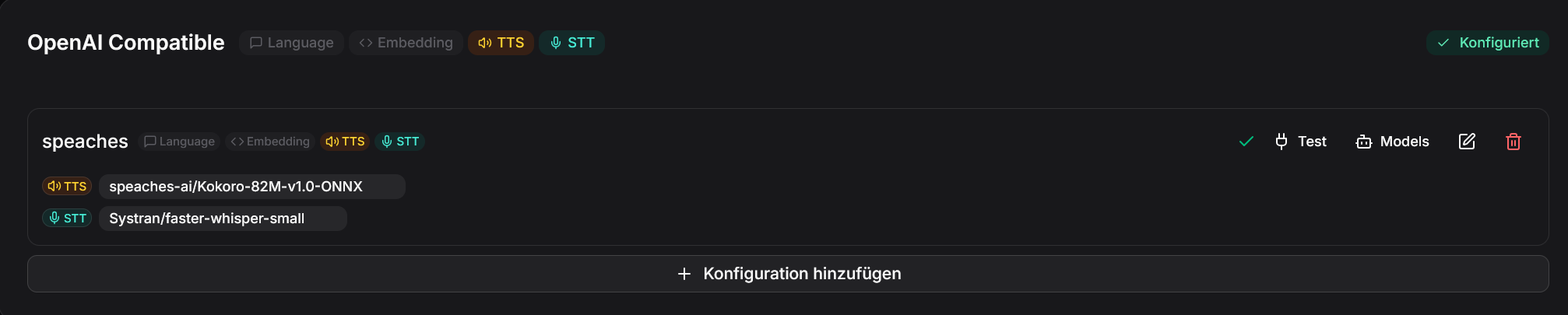
In Open Notebook muß jetzt das OpenAI Compatible Modell eingerichtet werden. Hier gibt man als Namen speaches an und als URL http://host.docker.internal:8969/v1 (MacOs und Windows) bzw. http://172.17.0.1:8969/v1 (Linux). Ein Klick auf Test sollte eine erfolgreiche Verbindung bestätigen.
Mit einem Klick auf Models sit für TTS "speaches-ai/Kokoro-82M-v1.0-ONNX" und für STT "Systran/faster-whisper-small" zuzuweisen.
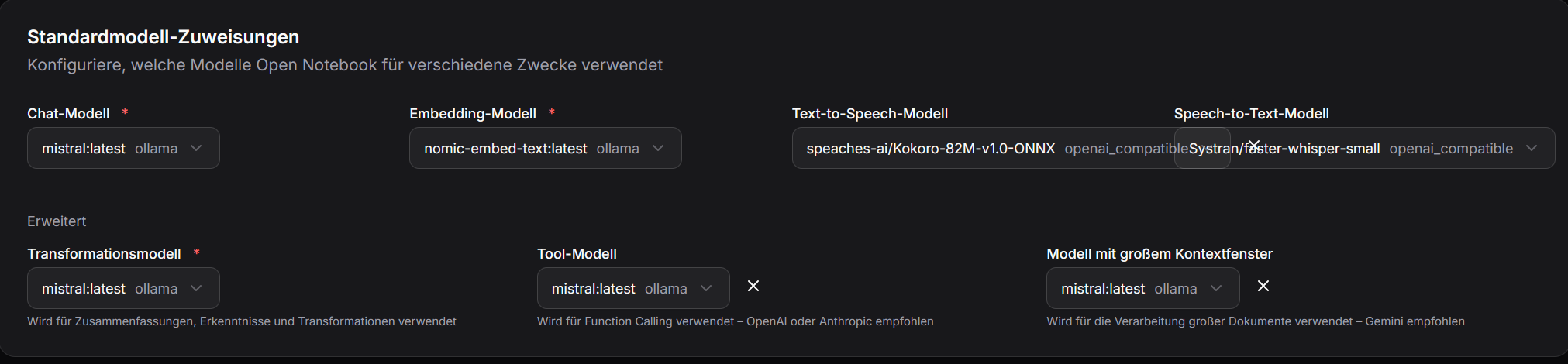
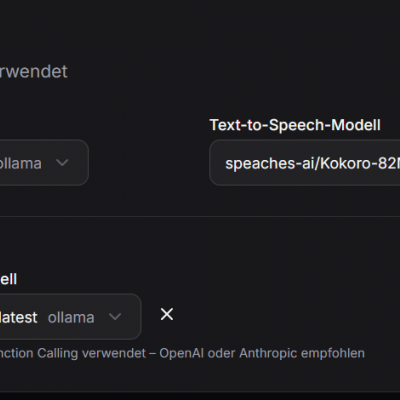
Danach sind die beiden Modelle bei TTS und STT in den Standardmodellzuweisungen auszuwählen.
Podcasts konfigurieren
Unter Podcasts gibt es den Bereich Profile. Dort muß man im Arbeitsbereich folgendes beide Profiltypen konfigurieren. Am einfachsten beginnt man damit bei den existierenden Profilen folgendes zu bearbeiten:
Sprecherprofile
- Stimmenmodell
- Stimmen-ID: manche Stimmenmodelle enthalten mehr als eine Stimme, in der Doku des Modells sind die Namen/IDs der Stimmen mit ihren Eigenschaften zu finden - bei Sprecherprofilen mit mehr als einer Sprecher ist jeweils eine unterschiedliche Stimme zuzuweisen!
- TTS-Überschreibung pro Sprecher: wenn ein Stimmenmodell nur eine Stimme enthält (z.B. bei den Piper-Modellen in Deutsch) kann für jeden Sprecher das Stimmenmodell übersteuert werden
Episodenprofile
- Gliederungsmodell: KI-Modell, dass die Episode in die gewünschte Anzahl an Gliederungspunkten aufteilt
- Transkriptmodell: KI-Modell, dass den finalen, gesamten Episodentext zusammenstellt.
- Podcastsprache: Sprache, in der der Podcast erzeugt werden soll (Achtung! Abhängigkeit: nicht jedes Stimmenmodell unterstützt alle Sprachen!)
Podcast erzeugen
Unter Podcast - Episoden lassen sich einzelne Postcast-Folgen erzeugen.
- auf Podcast erzeugen drücken
- Auswahl der einzubeziehenden Quellen
- Auswahl Episodenprofil
- Episodenname: Festlegung des Podcast-Themas
- Zusätzliche anweisungen: weitere Festlegungen zum Podcast-Inhalt
- Erzeugen

Bei mir wird die Podcast Sprache ignoriert, die Ausgabe ist leider immer in Englisch.
Dazu gab es einen Bug, der eigentlich bereits gefixt sein sollte. Ich habe das mal kommentiert und hoffe auf Fehlerbehebung.